Skype is my Favorite application for making VoIP calls in my PC. I use Skype like my mobile to make calls :D. Today I came across an application for Skype in which you can set custom ringback tones for your Skype friends! Here is the Step by Step Tutorial for adding Custom Ringback tone for Skype users using Richi MP3 Ringback Tones.
1. Download Richi MP3 Ringback Tones and install it on your PC . Open Skype.
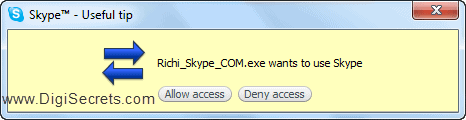
2. Grant Access for Skype to access RICHI_SKYPE_COM.EXE
3. Now open Richi MP3 Ringback Tones from your Desktop or from System Tray.
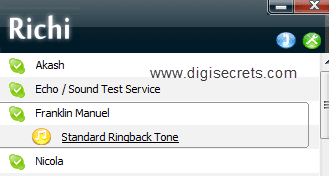
4. You can see the list of online and offline friends in Richi MP3 Ringback Tones main Menu.
5. To add a Custom Ring tone Click on the user name for whom you want to set custom ringback tone.
6. You will be seeing a yellow color music Button below the username u have opened. Click on that to access custom ringtone settings.
7. Now you can see 2 options one with Stranded Ring back tone and other one is choose a ring back tone. In Choose Ringback tone click on browse and select a MP3 File to assign as Ringback tone for your Friends!
8. Now you can see the assigned tone in Richi MP3 Ringback Tones Main Menu if u have already set a Ring back Tone.

Now when your friend call you they will here the MP3 Ringback tone! you can Set individual Tones for your Friends!
Note : The Skype Application Must be Opened While Installing and opening Richi MP3 Ringback Tones
I Like this Application Very much. Please Do Share your Views!..
Hey I was Surprised to hear a Ringback tone when I called you on Skype! This Application is Really cool and I will set different ringback tone for my friends!
I am not much of a skype user 🙁 but the ringback tone app sounds good.
Great tutorial Karth as usual. I like Skype and I surely will try this app. Thanks for sharing.
Thanks Karthik once again for sharing these useful programs. I am using skype in my office but I haven’t been using it much for making calls. But if I do then I will make use of this app. Thanks again 🙂
cool..thnx 🙂
Im a fan of skype…it is really cool…i will surely try this out…
Thanks for sharing….. 🙂
wow….skype user MP3
looks cool….